Where are Notepad++ Plugins? A Guide to Finding and Installing Plugins in Notepad++
Updated
Notepad++ is a popular text editor among developers and programmers, and its wide range of features and plugins make it a powerful tool for coding and editing. However, some users are unsure where to find and how to install Notepad++ plugins. In this article, we will guide you through the process.
Where to Find Notepad++ Plugins
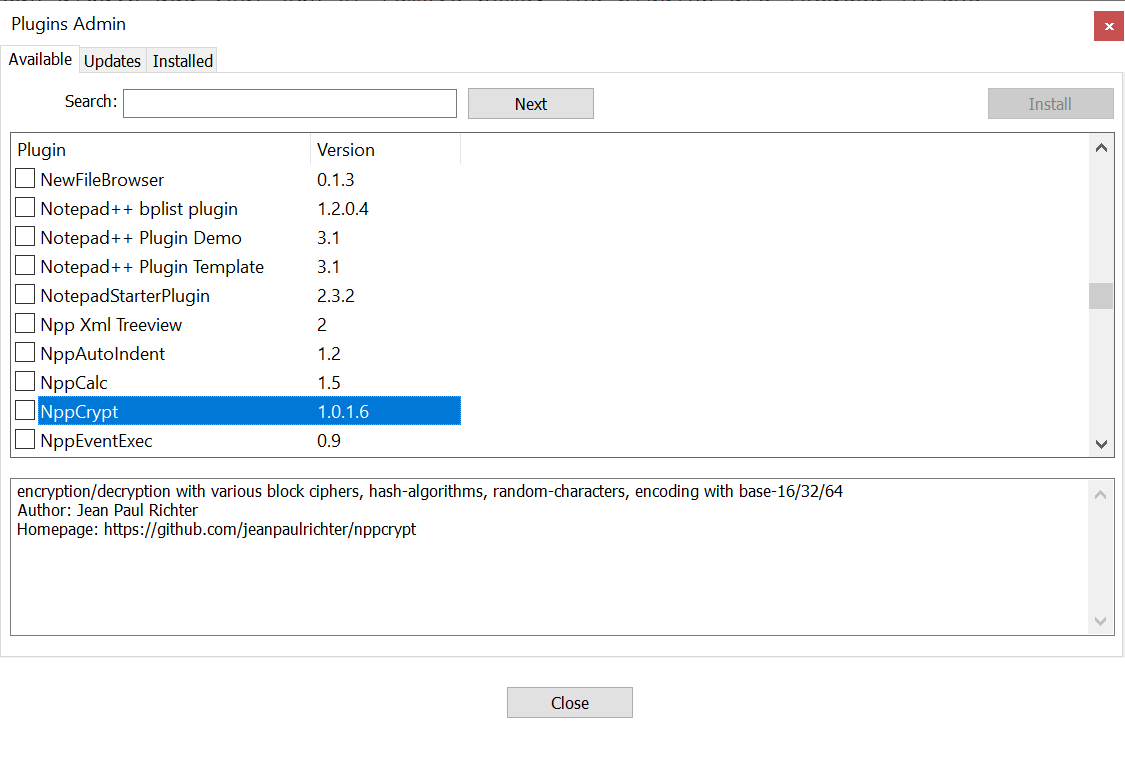
Notepad++ has a built-in plugin manager called Plugins Admin that makes it easy to find and install plugins. To open it, go to the "Plugins" menu and click "Plugins Admin…". You'll see three tabs: "Available" (plugins you can install), "Updates" (installed plugins with newer versions), and "Installed". Select any plugin to see its description, author, and homepage.
The official list of plugins that appears in Plugins Admin is maintained publicly on GitHub by the Notepad++ project. Many plugin authors also publish their plugins on their own GitHub pages.
Note: older versions of Notepad++ used a tool called "Plugin Manager". It was replaced by Plugins Admin in version 7.6, so if you see guides mentioning Plugin Manager, update Notepad++ and use Plugins Admin instead.
How to Install Notepad++ Plugins
Option 1: Install with Plugins Admin (Recommended)
- Open "Plugins" > "Plugins Admin…".
- In the "Available" tab, use the search box to find the plugin you want.
- Check the box next to the plugin and click "Install".
- Confirm the prompt. Notepad++ will close, install the plugin, and restart.
Option 2: Install a Plugin Manually
- Download the plugin from its official homepage. Make sure it matches your Notepad++ version (32-bit or 64-bit).
- Close Notepad++.
- Open the plugins folder in your Notepad++ installation directory, usually
C:\Program Files\Notepad++\plugins\. - Create a new folder with the same name as the plugin's DLL file (for example,
MyPlugin) and copy the DLL into it, so the path looks likeplugins\MyPlugin\MyPlugin.dll. - Restart Notepad++.
Tip: you can open the plugins folder quickly from "Plugins" > "Open Plugins Folder…".
Step 3: Verify the Installation
After Notepad++ restarts, open the "Plugins" menu and confirm the new plugin is listed. You can also open the plugin's own submenu to configure its settings.
Conclusion
Notepad++ plugins can greatly enhance your coding and editing experience. Finding and installing them is straightforward with Plugins Admin, or manually through the plugins folder. By following the steps in this article, you can easily install the plugins you need. Just remember to check that a plugin is safe before you install it, and try the popular JSON Viewer plugin to get started.